If you're experiencing a download error, learn how to troubleshoot exporting form data to Excel.
Analyze form results in Excel
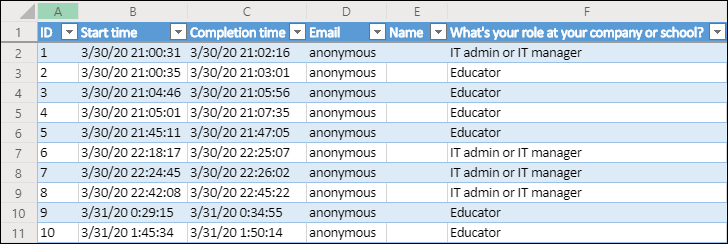
In your Excel workbook, details of each question in your form are represented in columns and each response is shown in a row. The first five columns display respondent ID, start and completion times for each response, and the name and email address of each respondent. The subsequent columns display that respondent's selections.
ℹ️
-
The respondent ID is exclusive for each response in your form. You can find individual responses and their corresponding respondent IDs by selecting View results on the Responses Overview screen of your form.
-
Any changes you make to your workbook won't modify the content of your form.
-
Names and email addresses won't be displayed if you allow your form to accept anonymous responses.
Share results with others
-
Select Responses Overview.
-
Select More options for responses > Share a summary link.
-
Select Copy.
When you paste this link, anyone that has the link will be able to view a summary of responses for your form.
ℹ️
-
If you're using the mobile site, select Response Overview and select the arrow in the center. You'll be able to copy or email the link from there.
-
If you're collaborating on a form with specific people in your organization, only you, as the form owner, can create a summary link for your form if one doesn't yet exist. Co-authors can still copy and share your summary link, but can't create one themselves. In other collaboration modes not set for specific people in your organization, co-authors can create new summary links.
Delete a shared summary link
If you share your form responses with anyone in your organization, and then decide to share with only specific people in your organization, any summary sharing link that already exists can still be accessed by anyone inside or outside of your organization.
Deleting a summary link will permanently remove and cannot be reactivated.
Go to View responses, Response Overview > More options > Share a summary link > Remove link .
Optional: You can then create a new summary link if you want to share it with a new audience, but this new summary link will still be accessible by anyone who gets a hold of it.
Still Need Help?
Ask CIT! 📞 (585) 245-5588 | 📧 Email | 💬 Chat | 📝 Submit a Request and we'll be happy to assist you.