Microsoft Forms Responses, Analyzing and Sharing

Body

This article will teach you how to view, analyze and share your MS Form results.

image of a ms form view responses tab

Microsoft Forms offers real-time analytics and individual results, which you can export to Excel for deeper analysis, print, or delete.

Once your form is live, you don't need to wait for it to close to see the data.


Responses Overview

In Microsoft Forms, click on the form you want to review the results, and then select View responses.

view response button
  • Responses Overview screen displays summary information about your form, such as number of responses and average time it took for respondents to complete your form.

    • Each question box displays the number of responses. 

    • More details links display details of individual responses.

Responses overview shows a summary of answers with More details links to help you explore details of each answer.

View Details for Each Question

  • Select More Details at individual questions to reveal more details for that question. MS_Forms_FormResults_Details-generic

    • You can sort the response results by selecting a column header.

MS_Forms_FormResults_Details-generic

Check Response Data for Each Question

  • Select Check individual results to see individual details for each respondent.

Check individual results button
  • Use the left and right arrows to move through result details.

Navigate individual responses with the arrows
  • Select the name of the respondent for a drop down window to jump to the results of a another respondent.

View a drop down list of respondents in Microsoft Forms
  • For more than 50 entries, select Show more respondents at the bottom of the dropdown.

  • To find a specific response, search by its unique Respondent ID.

  • If you are working with anonymous data, you can find these IDs in the first column of an Excel export.

  • Select to either delete response or print the responses.

image of elipses for more on response page


Insights and Actions

  • Select Back to return to the Responses Overview screen. 

  • Select to delete all responses, print responses, or share a summary link.

Select More to display options to delete all responses, print summary, or share a summary link.

Forms Results in Excel Workbook

You can easily view all of the response data for your form in Microsoft Excel.

  • From Responses Overview, you can Open results in Excel to capture a snapshot of your current response data in a workbook.

  • Select the drop down arrow next to Open results in Excel to Open in Excel Desktop as a preview, or Download a copy.

image of insights and actions window with excel options

Choosing how to view your results determines how your data stays updated:

  • Open in Excel (Web or Desktop): Creates a live connection. Your workbook is saved to OneDrive (or SharePoint for groups), and new responses sync automatically.

    • Note: Desktop requires Version 2410 or later.

  • Download a copy: Creates an offline file. This is a one-time snapshot with no connection to new form responses.

  • Permissions: Only the Form owner and internal editors can trigger a data refresh. External users cannot sync new data.

Troubleshoot exporting data

If you're experiencing a download error, learn how to troubleshoot exporting form data to Excel.

Analyze form results in Excel

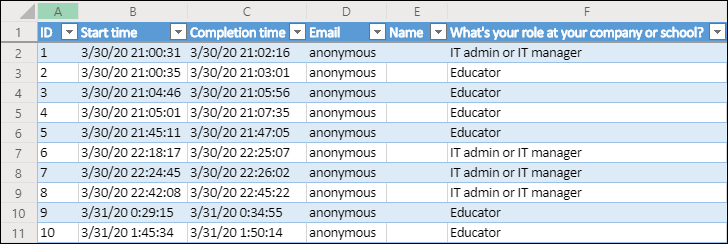
In your Excel workbook, details of each question in your form are represented in columns and each response is shown in a row. The first five columns display respondent ID, start and completion times for each response, and the name and email address of each respondent. The subsequent columns display that respondent's selections.

Share results with others

  1. Select Responses Overview.

  2. Select More options for responses > Share a summary link.

  3. Select Copy.

When you paste this link, anyone that has the link will be able to view a summary of responses for your form.


If you share your form responses with anyone in your organization, and then decide to share with only specific people in your organization, any summary sharing link that already exists can still be accessed by anyone inside or outside of your organization.

Deleting a summary link will permanently remove and cannot be reactivated.

Go to View responses, Response Overview > More options > Share a summary link > Remove link .

Optional: You can then create a new summary link if you want to share it with a new audience, but this new summary link will still be accessible by anyone who gets a hold of it. 


Still Need Help?

Ask CIT! 📞 (585) 245-5588 | 📧 Email | 💬 Chat | 📝 Submit a Request and we'll be happy to assist you.​​​​​​​

Details

Details

Article ID: 1671
Created
Wed 6/3/26 2:46 PM
Modified
Tue 6/30/26 8:31 AM