This article will help you transfer your personal Google Drive files and images to your personal Google Drive.
Before You Start
-
Before beginning this process, verify that your personal account has enough storage to accept the data transfer from your Geneseo account.
-
Google Takeout does not check for available space before starting.
-
If you run out of space during the process, it will fail and pause.
-
You cannot stop this process once it has begun or paused.
-
Organizing and Moving Files to OneDrive or SharePoint
-
You must be signed into your Geneseo account on your browser.
Google Takeout
-
Sign in to your school Google account and go to takeout.google.com/transfer.
-
Enter the email address of the destination Google account – this is where your files will be copied and saved to.
-
Click Send Code .

-
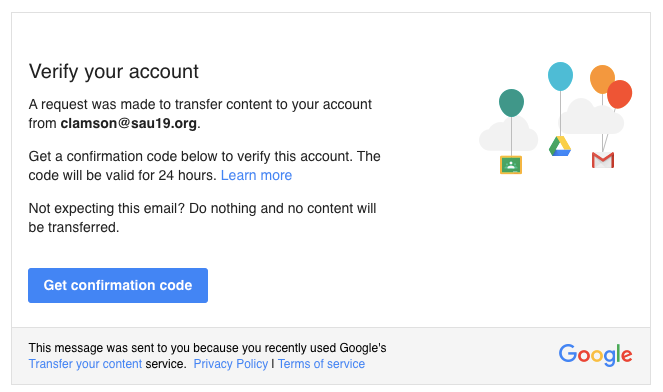
Open the email sent and click Get confirmation code. This will send a code to your personal account.
Please Note: This code is only active for 24 hours.
-
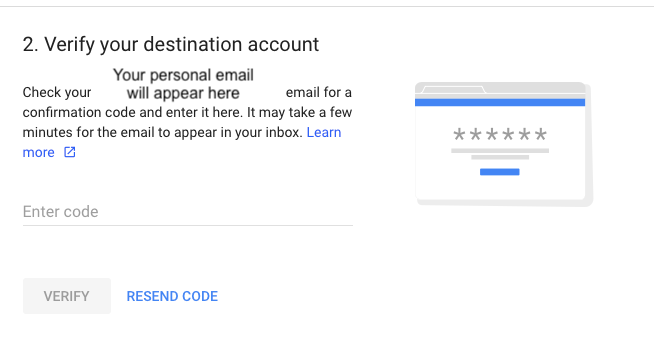
Go to your personal email & copy the verification code to paste into the Takeout Menu.

-
From your school account, return to takeout.google.com/transfer and paste in the verification code, then choose Verify.
-
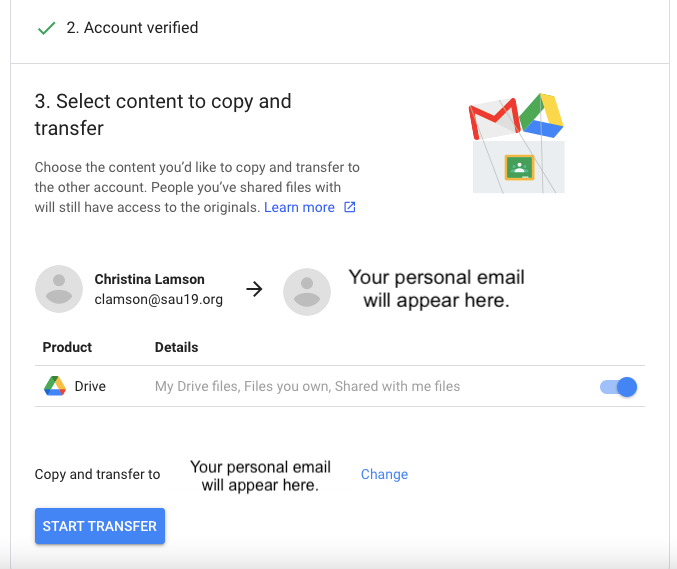
Choose the content you want to copy. Click Start Transfer to initiate. This process can take up to a week, but you will receive an email notification in your personal account once it’s complete.
Still Need Help?
Ask CIT! 📞 (585) 245-5588 | 📧 Email | 💬 Chat | 📝 Submit a Request and we'll be happy to assist you.