If the Microsoft Authenticator app was your only MFA method, you will not be able to perform the steps detailed below.
Steps
-
Navigate to https://mysignins.microsoft.com/security-info
-
On the Microsoft sign-in screen enter your SUNY Geneseo email address and click Next.
-
Enter your SUNY Geneseo password and click Sign In.
-
When presented with the Microsoft MFA screen select an alternate method to authenticate.
-
After authenticating, you will be directed to the My Sign-ins page where you can reactivate the Microsoft Authenticator app.
-
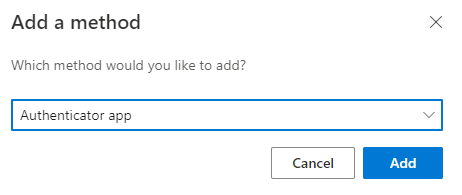
Select + Add method (Shown in the screen shot below)
7. Select Authenticator app and then select Add.
-
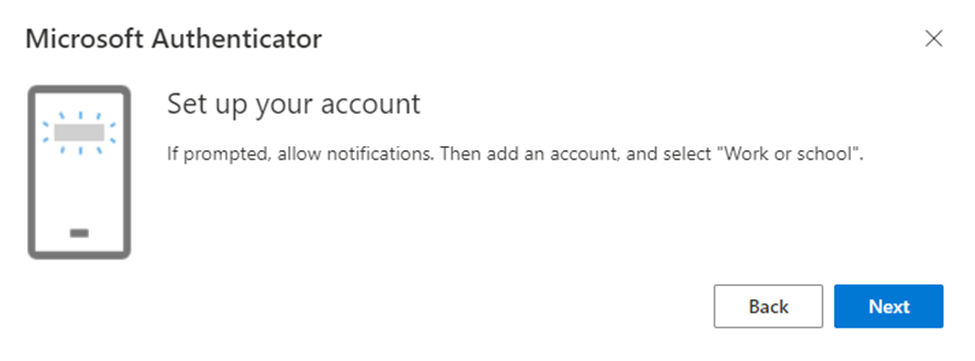
Set up your account by opening the Microsoft Authenticator app on your smartphone.
-
Press Next when you see the prompt below on your computer screen to get the QR activation code (Shown in step 11).
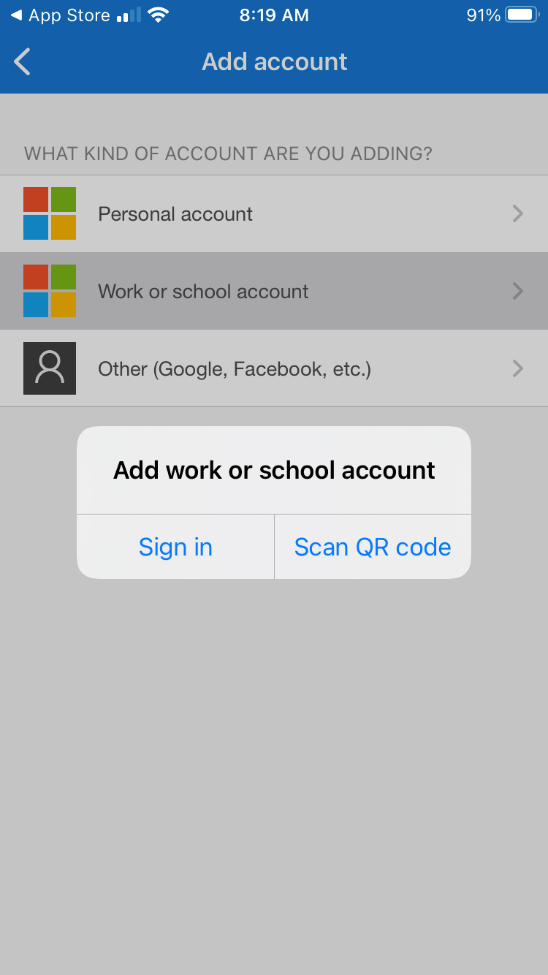
9. Press the + icon in the top right corner.
10. On your smartphone select Work or school account and then select Scan QR code.
11. If prompted, allow camera access on your smartphone to scan the QR code on your computer screen.
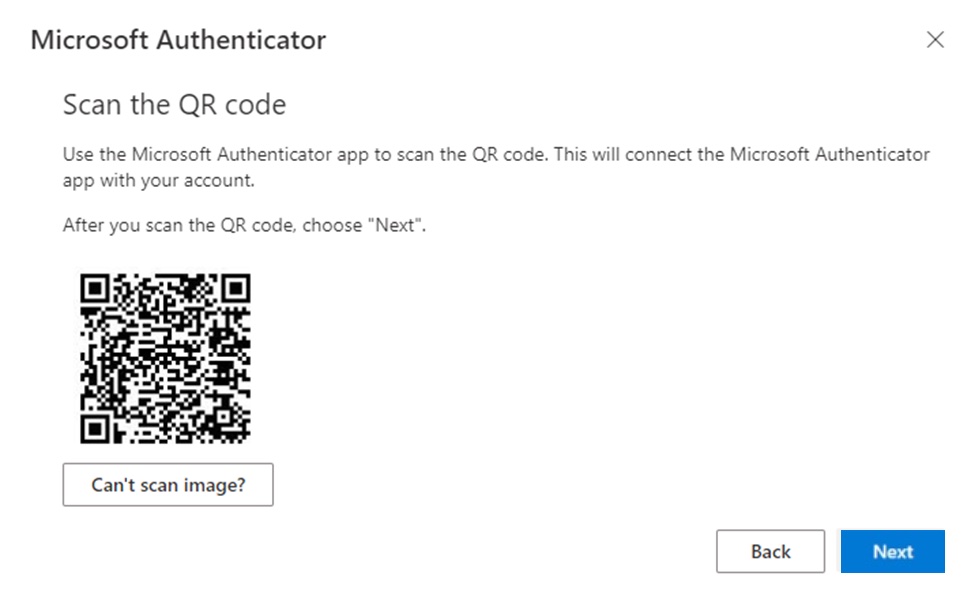
12. After scanning the QR code you will be required to do a test authentication to ensure the Microsoft Authenticator app is working.
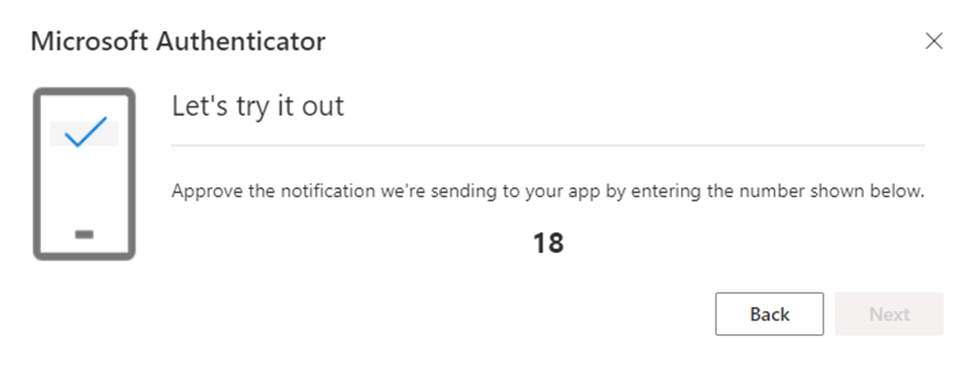
13. Enter the number that is presented on your computer screen within the Microsoft authenticator app.
14. If the number is entered correctly within the app you can complete setup by clicking Next on your computer screen.
15. Microsoft Authenticator app is now activated and will be your MFA primary method.
Still Need Help?
Ask CIT! 📞 (585) 245-5588 | 📧 Email | 💬 Chat | 📝 Submit a Request and we'll be happy to assist you.