Hiding the Final Calculated Grade is useful if an instructor wants to prevent students from seeing their cumulative grade or receiving automatic notifications whenever a grade is entered or updated.
|
Crucial Setup Steps: To ensure complete grade privacy and silence notifications, you must hide all three of the following components:
-
The activity: The assignment or quiz itself.
-
The grade item: The specific column for that task.
-
The Final Calculated Grade column: The cumulative total.
Why this matters:
-
Notifications: If the Final Calculated Grade remains visible, students will still receive an update notification because their cumulative total recalculates when the new score is entered.
-
Workarounds: If you hide individual grade columns but leave the Final Calculated Grade visible, students can simply click the Calculator icon in Grades or Class Progress > Grades to bypass the restriction and view their hidden marks.
|
To hide the Final Calculated Grade column
-
Navigate to your course and click on Grades from the course navigation bar.
-
Ensure you are on the Enter Grades tab.
-
Click on the chevron next to Final Calculated Grade and choose Enter Grades.

-
A new page will load. Ensure you see all of your students on this page by changing the amount per page to 200 (at the bottom of the page).
-
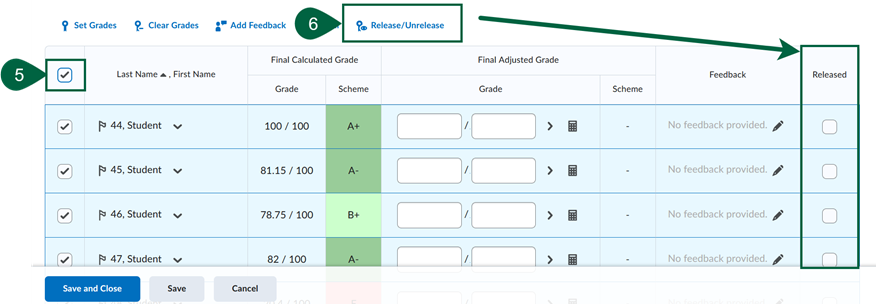
Select all students by clicking the Select All Rows checkbox in the top left corner.
-
Click the Release/Unrelease button. Ensure that all the checkboxes in the Released column are unchecked.
-
Click Save and Close at the bottom of the screen. Students who cannot see their Final Calculated Grade item will have an eye with a strike through next to their Final Calculated Grade in the Instructor view of Enter Grades.
-
When you are ready to Release the Final Calculated Grade, repeat the previous steps ensuring that the checkboxes in the Released column are checked.
Still Need Help?
To explore guides created by D2L, visit the Brightspace Help Site. Note that you will need to create an account to access content within the Brightspace Community.
Ask CIT! Email us or submit a request and we'll be happy to assist you.