Microsoft Forms, SharePoint and Google Forms
Body
This article will explain how to integrate MS Forms with SharePoint and how to convert a Google Form to a MS Form.
SharePoint MS Forms Web Part
With the Microsoft Forms web part, you can add a form or form results to your SharePoint page.
-
If you're not already in edit mode, select Edit at the top right of the page.
-
#Select the Toolboxon the right.
-
Select See all web parts.
-
Then select or drag-and-drop Microsoft Forms from the list of web parts.
Add a new form to a SharePoint site
-
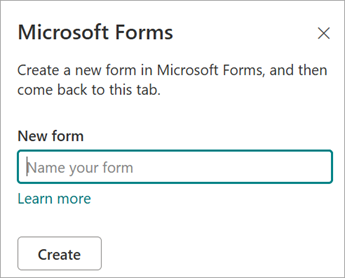
Select Add new form.
-
In the panel on the right, provide a name for your new form.
-
Select Create.
-
Microsoft Forms will open in a new tab.
-
When you're done creating your form, go back to your SharePoint page.
-
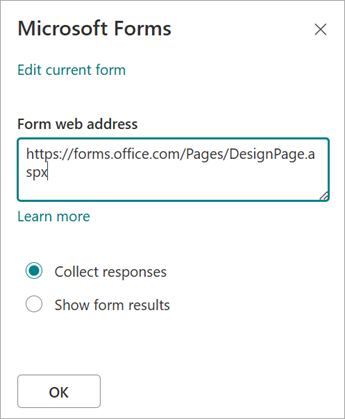
Make sure Collect responses is selected, then select OK to refresh so you're seeing the most updated content.
ℹ️
Note: The web address of the form you just created will already be populated in the Form web address field.
-
Select Add existing form.
-
If you want to share one of your own forms, go to forms.office.com and open the form you want to share on your SharePoint page.
-
Copy the web address from the browser's address bar.
ℹ️
In Microsoft Forms, you select Collect Responses to find the form web address. Under Send and collect responses, select Copy link to copy the web address of the form.
-
Go back to your SharePoint page.
-
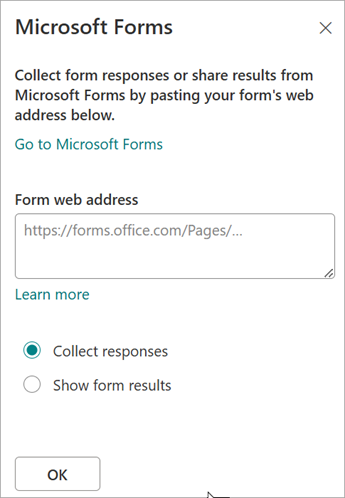
In the Form web address field, paste the web address of your form.
-
Make sure Collect responses is selected, then select OK to refresh the page and see your form.
-
On your SharePoint page in Edit mode.
-
Select your Forms web part.
-
Then select Properties.
-
In the panel on the right, select Edit current form to make changes to your form.
Once you have collected responses, you can now view results.
ℹ️
Under Form web address, the following message is checked by default: A web address will be created. Anyone with it can view a summary of responses. Microsoft Forms will generate a web address for this survey's result sharing. You can share the web address with anyone to view this survey's summary of responses. Only form owners or co-owners can generate the sharing web address.
Navigate to your SharePoint site and open the page where you want the form.
-
Click the Edit button in the top right corner to enter edit mode.
-
Add the Web Part: Hover over where you want the form, click the + icon, and search for and select the Microsoft Forms web part.
-
Configure the Form: In the properties pane that appears on the right, select either:
-
Choose Display Mode: In the web part properties, select whether to Collect responses (show the form) or Show form results (show poll results).
-
Publish: Click Republish (or Publish) to save your changes and make the form live on the page.
Ask CIT! 📞 (585) 245-5588 | 📧 Email | 💬 Chat | 📝 Submit a Request and we'll be happy to assist you.
Details
Details
Article ID:
1672
Created
Wed 6/3/26 2:46 PM
Modified
Wed 10/7/26 2:50 PM