Body
This article will give you options on how to stop receiving single-use code messages from Microsoft.
If you have received a message resembling the one below.
From: Microsoft account team (account-security-noreply@accountprotection.microsoft.com)
Subject: Your single-use code
Hi name@geneseo.edu,
We received your request for a single-use code to use with your Microsoft account.
Your single-use code is: 123456
If you didn't request this code, you can safely ignore this email. Someone else might have typed your email address by mistake.
Thanks,
The Microsoft account team
Check Account Activity
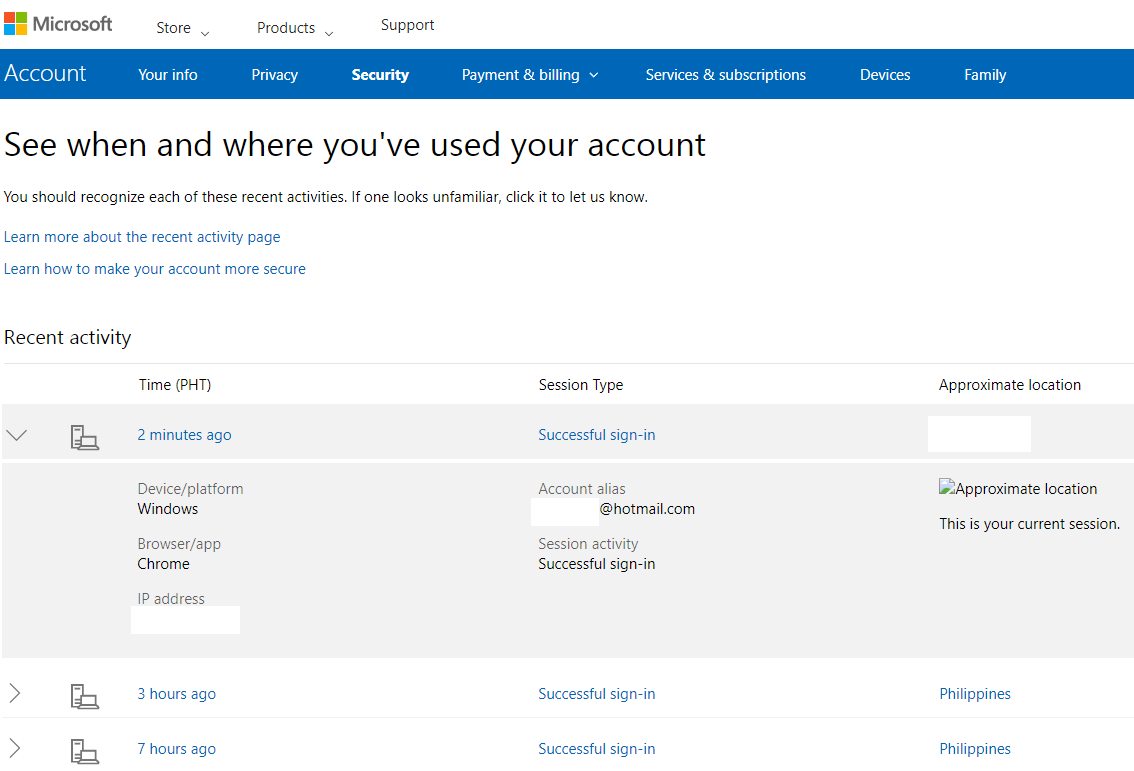
Regularly reviewing your account activity is crucial to identifying devices and browsers accessing your account, aiding in detecting unauthorized access.
-
Open a browser and go to https://account.live.com/Activity.
-
Sign in to your account.
-
If you notice that your account has been logged in from an unfamiliar location, it is crucial to update your password promptly.
Change Password or Microsoft Account
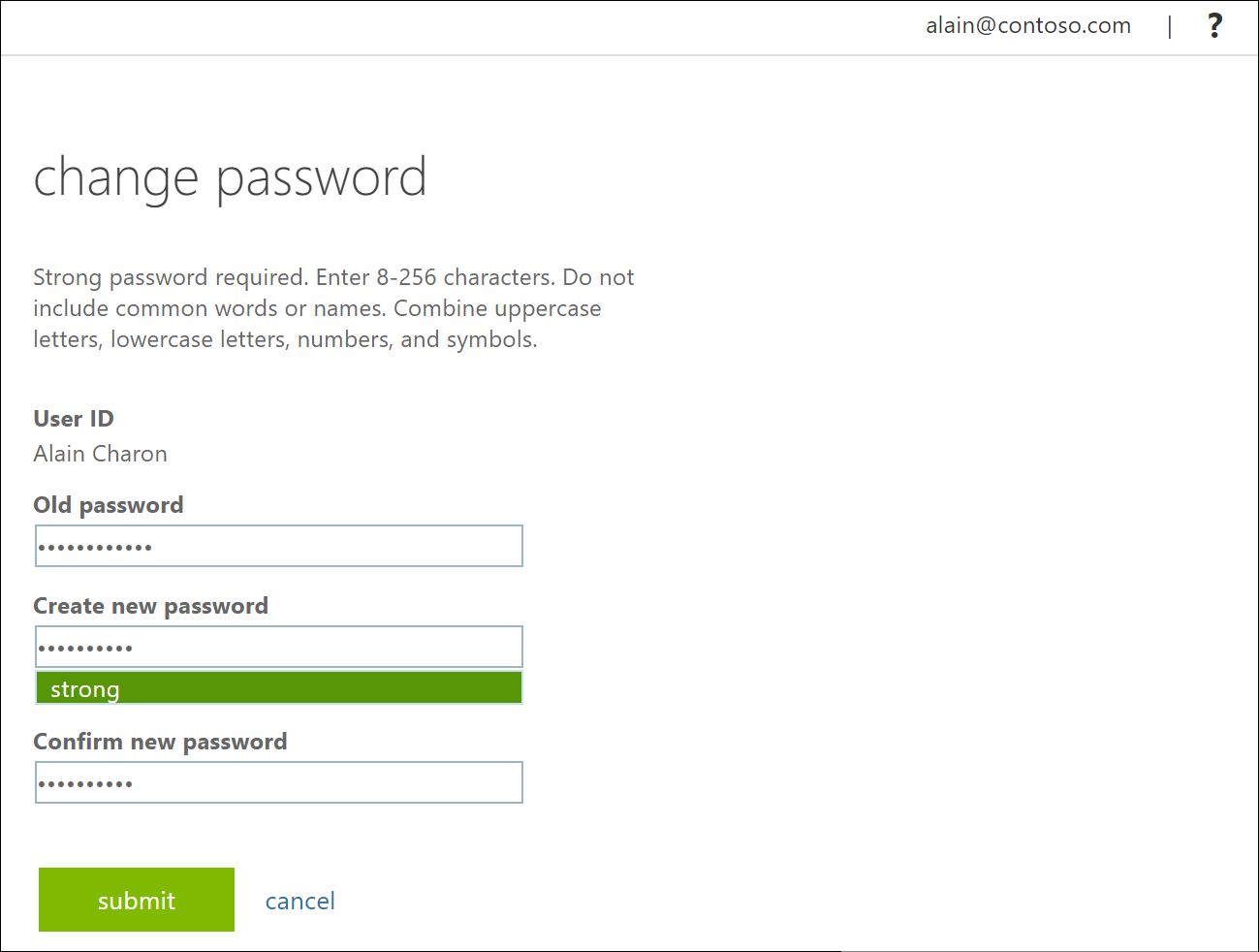
Changing passwords is a key step to stopping Microsoft's single-use code email. It is advised to set a strong password and ensure its uniqueness. Passwords should contain upper- and lowercase letters, numbers, and special symbols.
-
Go to the Microsoft security page.
-
Sign in to your account with your ID and password.
-
Click the Security tab and choose Change password.
-
Enter your old password and new password.
-
Click Save to confirm.
Enable Two-step Verification
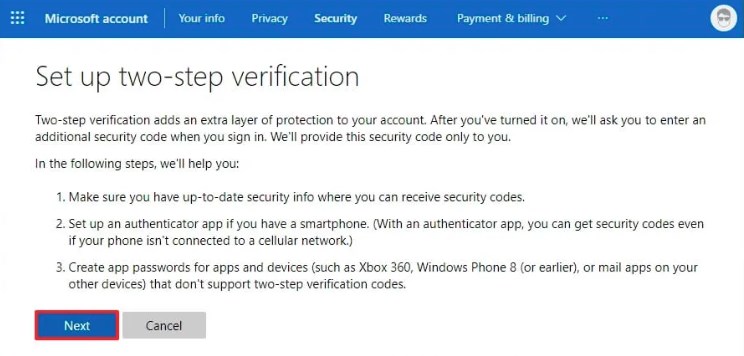
To stop Microsoft's single-use code email, enable Two-Step Verification, which requires a verification code along with your password when logging in from a new device.
-
Visit the Microsoft security page and sign in to your account.
-
Under the Security section, choose Add security information.
-
Turn on Two-step Verification and follow the prompts to complete the setup.
Rename Your Personal Account
-
Open a browser private window and go to the Microsoft account sign-in page
-
When you enter your @geneseo.edu email address you will see a message to select a "Work or school account" OR a "Personal Account".
-
If you see this message it means you have a Personal Microsoft Account.
Rename your Personal Account
-
To update your Personal Microsoft Account, transition from your @geneseo.edu email address to a personal email address.
-
The sign-in page will feature a link titled "Rename your personal Microsoft account."
Find and Close Forgotten Microsoft Accounts
Permanently closing old accounts could prevent code spam emails.
To identify the accounts linked to your Microsoft account as recovery addresses:
-
Go to Recover Your Username.
-
Enter your email address and click next.
-
Enter the security code sent to that email address and hit next.
-
Microsoft will provide a partly censored list of addresses associated with your email address.
-
Now you can check the account activity, from solution 1, and permanently close these old accounts.
Additional Steps
-
Keep your operating system up to date to ensure there are no security holes.
-
Don’t reply to messages asking you to enter the verification code. Hackers may use this message to obtain your login credentials and details.
-
To manage devices accessing your account, visit the Microsoft security page. If an unfamiliar device attempts to log in, Microsoft will send a notification.
Still Need Help?
Ask CIT! 📞 (585) 245-5588 | 📧 Email | 💬 Chat | 📝 Submit a Request and we'll be happy to assist you.